Group Grid Tool
 The Group Grid Tool object displays data in grid format. The columns represent data from a current value service; the rows represent facilities. The UDC of each column is defined in the Group Grid Tool object. Each cell in the grid is basically equivalent to a Text Tool object. The Grid can be configured to show any attribute of the point (configuration, current value, facility information), a format can be applied to the display of the data, and the alarm element and alarm colors can be customized. All of the built-in right-click functionality of a Text Tool object is available for each cell (trending, acknowledge alarms, view history data, view alarm data, access to point configuration records, etc.).
|
Group Grid Tool |
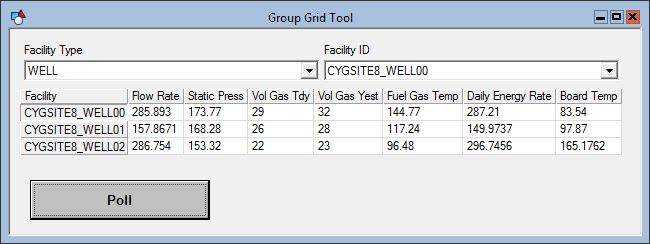
When a user clicks on a row in the grid, if the grid’s [AutoRestart] property (Normal page) is set to true, the [Facility] property of TheView is set to that of the selected row. Any tool that is configured for templating can take advantage of this, such as a UIS Command Button or the Default Trend.
The columns can be sorted and reverse sorted by clicking on the column heading. The sort order (numeric, date, or string) is a configuration property of the column. You can configure the default sort for the grid. The default sort order can be based on a single column or multiple columns.
In Run mode, a user can print or export the data, hide or show columns, show row numbers, and change the display of the values to alternate units. These options are presented by right-clicking on the top left cell of the grid. You can define a label for this cell.
The grid can be configured to include a Summary Row. The summary type is defined for each column. Available types are Count, Sum, Mean, Minimum, and Maximum.
A Group Grid Tool object typically works in conjunction with a Group Navigation Bar or Facility Navigation Bar. The navigation bar sets the Facility ID for each row in the grid. The Group Grid Tool object is associated with a navigation bar using the Group Grid Tool’s [NavBar] property. A Group Grid Tool object can be used without a navigation bar; however, you have to use script to set the Facility ID for each row. For more information regarding scripting and the GroupGrid Object, see CxGrpGrid.
Two grid controls can be used on a single CygNet Studio screen, each with its own navigation bar to display data from different facilities on the same Studio screen.
The first column in the grid shows information regarding the facility. The content of each cell is determined by the [RowLabelItem] property (Normal page). The default is Facility, which is the ID of the Facility. Other options are Facility Tag (SITE.SERVICE::FACILITYID), Site Service (the Site.Service of the facility), and Node Description (the description of the node from the navigation hierarchy, which is generally the facility description).
More:
 Group Grid Tool - Configuration
Group Grid Tool - Manual User Value
Group Grid Tool - Properties, Events, and Methods


